
Canva + Gang Sheets: A Practical Workflow for Non-Designers
Master the Canva to DTF gang sheet workflow. Learn to set up print-ready files, manage resolution, and achieve professional results without design expertise.
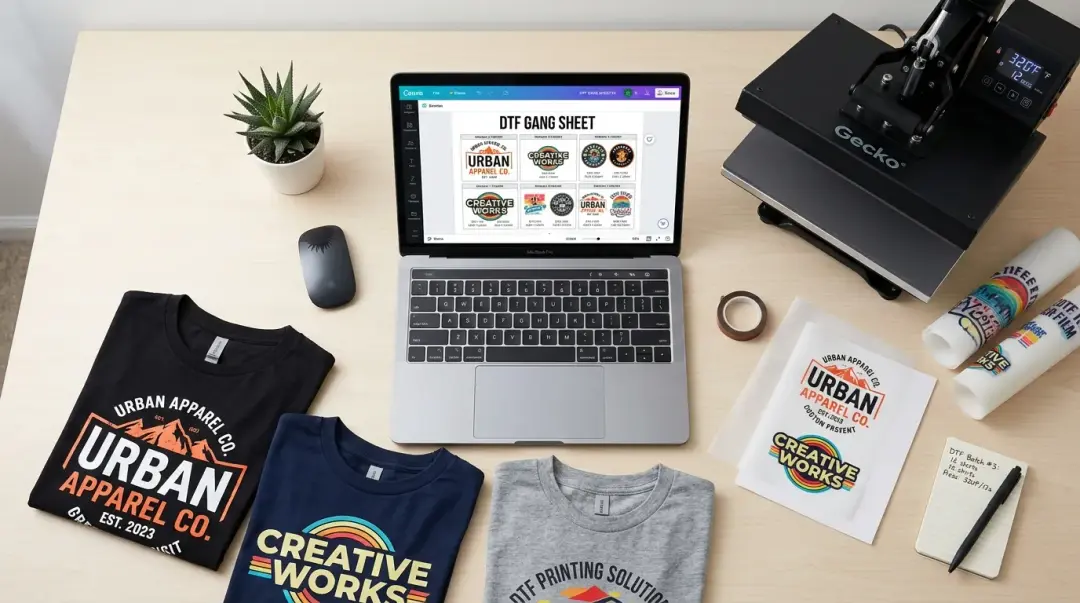
The Accessible Path to Professional DTF Transfers
For aspiring DTF (Direct to Film) sellers without formal graphic design training, the barrier to entry often feels centered on complex software. However, the combination of Canva for design creation and a professional gang sheet builder has emerged as the most accessible, end-to-end workflow in 2026. When executed with precision, this method produces commercially viable transfers that meet the high expectations of today’s custom apparel market.
Many beginners struggle with file quality, leading to pixelated prints or rejected uploads. By following a structured, repeatable workflow, you can bridge the gap between amateur design and professional-grade output.
The 5-Step Canva to DTF Workflow
Consistency is key to DTF quality. Follow these steps to ensure your designs are ready for the gang sheet builder:
- Design at Final Size: Build your artwork at the exact physical dimensions required (e.g., a 4" x 4" chest print should be created on a 4" x 4" canvas).
- Set Resolution Correctly: Always work at 300 DPI from the moment you start the file. Do not build small and try to scale up later.
- Enable Transparency: Use Canva’s transparent background toggle to ensure no white boxes or solid fills surround your design.
- High-Resolution Export: Save your file as a PNG using the highest export setting available on your plan.
- Upload to Gang Sheet Builder: Open your DTF supplier's specialized platform to arrange, nest, and print your gang sheet.
The Most Common Mistake: Resolution Traps
A frequent error among non-designers is designing at standard screen resolution (72 DPI) and attempting to export at 300 DPI later. It is a common misconception that changing export settings will "fix" low-quality artwork. In reality, Canva’s export settings cannot synthesize detail that wasn't captured in the original canvas. Always set your canvas to print resolution from the start.
Canva Pro vs. Free: Why it Matters for DTF
Canva’s free plan includes restrictions that can hinder print quality, specifically regarding export resolution and transparency management. Upgrading to Canva Pro ($12.99/month) is highly recommended for DTF sellers as it unlocks high-resolution PNG and PDF exports.
| Feature | Canva Free | Canva Pro |
|---|---|---|
| Transparent Background | Not Available | Included |
| High-Res Exports | Limited | Unlimited |
| SVG/Vector Potential | Limited | Better Control |
Practical Tips for Raster Design Limitations
Because Canva is a raster-based design tool, all artwork exports as pixel-based files rather than true vector paths. This can lead to pixel-stepping on fine details. Use these workarounds to maintain sharpness:
- Text Size: Keep all text elements at a minimum of 24pt.
- Stroke Weights: Maintain stroke weights on icons and decorative elements above 3pt.
- Simplify Edges: Avoid complex, thin diagonal edges that may blur during the printing process.
When to Outgrow Canva
Canva Pro is an exceptional tool for text-heavy designs, simple quotes, and basic layouts. However, as your business evolves, you may encounter limitations with complex illustrations or fine-line requirements. For designs requiring strict brand-identity color matching or high-complexity graphics, investing in Affinity Designer ($20 one-time) is a smart business move. It offers true vector support, which provides cleaner output and significantly reduces file rejection rates from professional print shops.
Key Takeaway: Master the 300 DPI canvas setup and transparent export in Canva to achieve professional results. If your designs involve complex, thin lines, consider transitioning to vector-based software like Affinity Designer as your volume scales.
Frequently Asked Questions
Why is it important to design at the final size rather than scaling up later in Canva?
Does Canva Free work for creating files for DTF printing?
What is a 'resolution trap' and how can I avoid it when designing for DTF?
How can I keep my designs sharp since Canva is a raster-based tool?
What is the purpose of a gang sheet builder in the DTF workflow?
Comments
No comments yet. Be the first to share your thoughts!