
Handling Multi-Color White Underbase Layering for DTF
Master selective white underbase layering for DTF. Improve complex design quality by controlling opacity in zones for vintage and transparent effects.
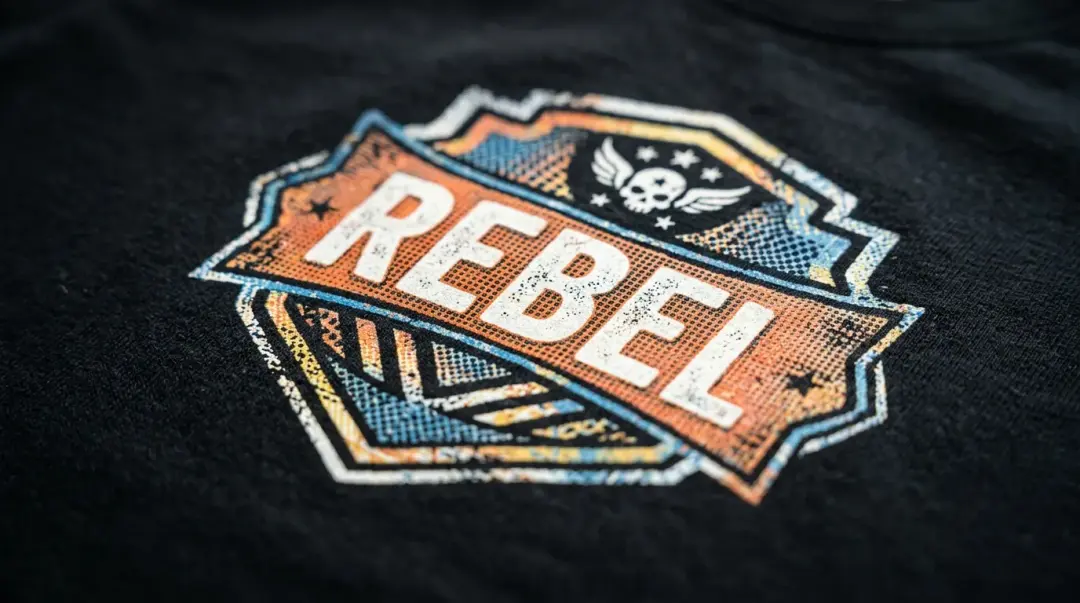
Most Direct to Film (DTF) operators treat the white underbase as a binary element—either it is fully on or it is entirely off. While this approach works for standard logo applications, it falls short when producing advanced, fashion-forward designs. To achieve high-end, textured, or distressed effects, you must shift your perspective to multi-zone white ink management. This technique allows you to selectively apply opacity, dramatically improving print quality on complex designs that combine solid blocks with transparent or semi-transparent elements.
Understanding Selective Underbase Opacity
The core concept of selective underbase opacity is simple: rather than applying a uniform 100% white underbase across the entire design footprint, you map varying white opacity levels to different areas of the artwork. This customization dictates how the garment color interacts with the final print.
- Solid Elements: Design elements intended to appear fully opaque on a dark garment—such as a solid white logo or a vibrant color block—require a 100% white underbase to ensure maximum color pop.
- Texture and Fades: Design elements intended to show the fabric color through them—such as a faded vintage texture, a distressed halftone effect, or a soft shadow gradient—often require 0% or 30–50% white underbase.
Without this selective approach, every element in your design receives the same rigid underbase treatment, often obliterating the nuanced visual effects you spent hours creating in your design software.
Methods for Implementation
Implementing multi-zone underbase layering requires precision and the right tools. You generally have two paths to achieve this control:
1. RIP Software Masking
Advanced RIP (Raster Image Processor) software platforms—such as Cadlink Digital Factory and Wasatch RIP—often include features for selective white masking. These tools analyze the transparency and color density of your file and allow you to define how the white ink is layered beneath those specific zones. This is the most efficient method for production environments.
2. Manual File Preparation (High-Control)
For the most precise control, especially when designing for streetwear or vintage styles, a manual approach is superior. By building a separate white underbase layer in Adobe Photoshop or Illustrator and embedding it as a dedicated channel, you retain total authority over the final output. For more insights on perfecting your production workflow, check out our DTF Troubleshooting & Techniques blog — advanced RIP or design technique section.
Step-by-Step Manual Underbase Creation:
- Create a Grayscale Mask: In your design software, build your underbase layer as a grayscale mask. Pure white represents 100% underbase opacity, while progressively darker grays represent lower percentages (e.g., 50% gray = 50% white ink opacity).
- Define the Channel: Save this grayscale mask as a dedicated spot channel alongside your color artwork.
- Export: Ensure the file format (often TIF or PSD) supports channels so your RIP software recognizes the custom white layer rather than attempting to generate a standard 100% blanket underbase.
Key Takeaway: Think of your white underbase as a paint-by-numbers guide. By assigning specific densities to different areas, you turn a standard digital transfer into a high-end graphic that feels integrated into the fabric rather than sitting on top of it.
Comparison: Binary vs. Multi-Zone Underbase
| Feature | Binary Underbase (100%/0%) | Multi-Zone Underbase |
|---|---|---|
| Best For | Standard Logos, Solid Text | Vintage/Distressed, Gradients |
| Visual Impact | High Opacity, "Sticker" Feel | Natural, Fabric-Integrated Look |
| Complexity | Low (Automated) | High (Custom Design Prep) |
| Garment Interaction | Blocked Entirely | Selective Integration |
Why This Matters for Fashion-Forward Streetwear
For brands and shops producing fashion-forward streetwear, the difference is clear. A DTF print that relies on a uniform underbase often looks like a digital decal applied to the fabric. By mastering multi-zone layering, you ensure your prints look like they were specifically designed for the garment they occupy. This level of detail elevates your product, providing the professional finish required for premium, high-value apparel.
Frequently Asked Questions
What is the difference between a binary white underbase and a multi-zone white underbase in DTF printing?
How can I implement selective white underbase opacity in my DTF production?
Why would I want to use less than 100% white underbase opacity?
How do I manually prepare a file for multi-zone DTF printing?
Is multi-zone white underbase management necessary for all DTF prints?
Comments
No comments yet. Be the first to share your thoughts!