
Using Canva for DTF: What Works and What Doesn't
Master Canva for DTF printing. Learn the essential export settings for transparent 300 DPI files and understand when to switch to professional vector software.
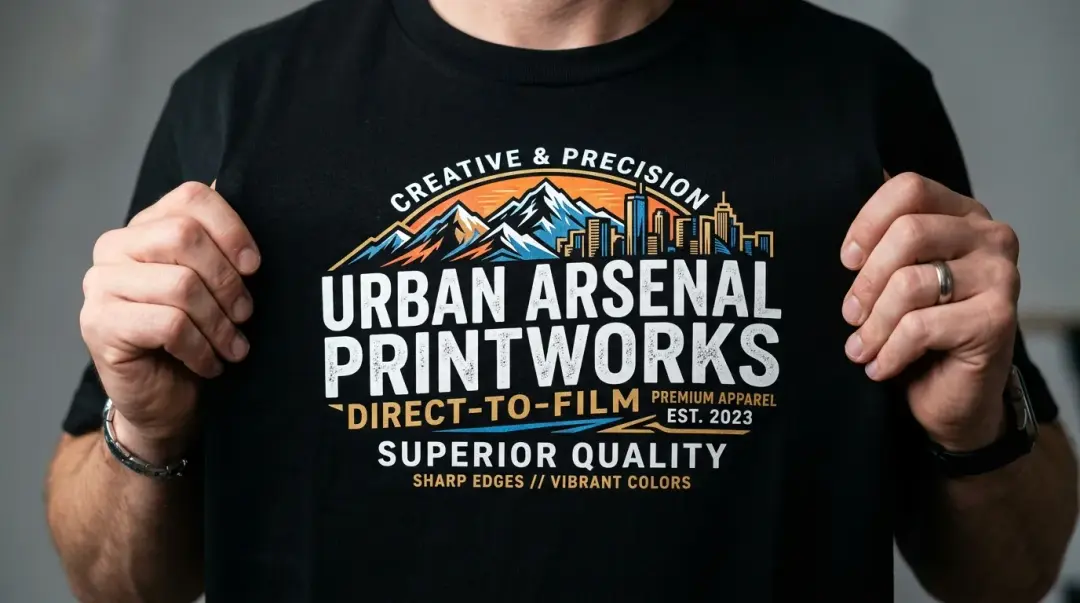
Can Canva Really Handle DTF Design?
Canva has rapidly become the default design tool for a large segment of the DTF (Direct to Film) market. From Etsy sellers and small apparel brands to new decorators entering the space, many users find Canva to be an accessible entry point. Unlike complex software like Adobe Illustrator or Photoshop, Canva offers a shallow learning curve that allows for quick production of apparel graphics.
However, while Canva is excellent for specific tasks, it is not a specialized print-production tool. Understanding the technical limitations of Canva is essential for anyone looking to achieve professional, high-quality DTF prints that withstand washing and look sharp on garments.
What Works: When to Use Canva for DTF
For straightforward design tasks, Canva is a highly capable tool. It excels in environments where design speed is a priority and the artwork complexity remains manageable.
- Text-Based Graphics: Designing clean, typography-focused prints is where Canva shines.
- Combining Elements: Quickly layering clipart, shapes, and icons to create a cohesive layout.
- Basic Color Fills: Applying solid color fills to shapes and text is handled reliably.
- Transparent PNG Export: When configured correctly, Canva can produce files suitable for standard DTF transfers.
The Critical Export Checklist
To avoid common issues like white boxes appearing on your apparel, you must follow these export steps strictly. According to industry standards for high-quality printing, 300 DPI (dots per inch) is the absolute minimum requirement to prevent pixelation.
- Enable Transparent Background: Always toggle the 'Transparent background' option in the download menu. If you export a design with a white background, the DTF printer will interpret that as part of the image and transfer a white square onto your garment.
- Use the Pro Export Settings: Ensure your DPI is set to the maximum available (usually 300 DPI).
- Export as PNG: PNG is the preferred format for maintaining the transparency layer required for DTF printing.
What Doesn't Work: The Limitations of Canva
Canva's real limitations for DTF become apparent as design complexity increases. Because Canva operates primarily as a raster-based design environment regarding exports, it struggles with the precision required for high-end garment printing.
Key Technical Constraints
| Limitation | Impact on DTF Print |
|---|---|
| Raster Exporting | Even if you use shapes, Canva exports to a rasterized PNG rather than true vector. |
| Scaling Issues | Fine lines and small text can become pixelated when scaled up for full-back designs. |
| Lack of Color Management | No native support for white ink channel management or ICC profile calibration. |
| Resolution Constraints | Fixed at 300 DPI max, which may limit quality on very large, detailed prints. |
When to Upgrade to Professional Vector Software
You should transition to professional tools like Adobe Illustrator or Affinity Designer when your projects exceed Canva’s threshold for detail and scalability.
Key Takeaway: If your designs incorporate thin strokes under 2pt, text smaller than 8pt, or complex gradients intended for large-format printing, Canva is not the appropriate tool. Professional vector software is required to ensure clean, sharp output that does not pixelate at larger sizes.
Summary Guidelines for Your Workflow
- Use Canva for: Medium-complexity designs under 8 inches, simple text treatments, and social-media-style graphics.
- Use Professional Software for: Designs with fine detail, small typography, and any artwork that needs to scale to 12 inches or larger without quality loss.
By respecting these limitations, you can effectively use Canva as a part of your workflow while knowing exactly when to step up to more powerful design tools to ensure the quality of your finished DTF products.
Frequently Asked Questions
Why does my DTF print have a white square box around it when I use Canva?
What is the recommended resolution for designing DTF prints in Canva?
When should I stop using Canva and switch to professional vector software for DTF?
Is Canva a suitable tool for creating complex DTF apparel graphics?
Which file format should I use when exporting my designs from Canva for DTF printing?
Comments
No comments yet. Be the first to share your thoughts!